

Overview
This guide covers installation, settings tabs, workflows, licensing, and troubleshooting for Carbon Based Studio Image Controller.
Settings are at Carbon Based > Image Controller.
Image Controller is a licensed product. After purchase, activate your license key on the License tab to receive plugin updates. Your key is in your order email or My Account > Licenses on carbonbasedstudio.com.
Installation
- Install from Plugins > Add New or upload to
wp-content/plugins/. - Activate Carbon Based Studio Image Controller.
- Confirm Carbon Based appears in the admin menu with Image Controller as a submenu.
- Open the License tab and activate your license key.
Requirements: WordPress 6.0+, PHP 8.0+ (PHP 8.1+ for AVIF). Optional: Imagick for TIFF conversion and best WebP quality; WooCommerce or standalone Action Scheduler for background scans on large libraries.
Settings overview
| Tab | Purpose |
|---|---|
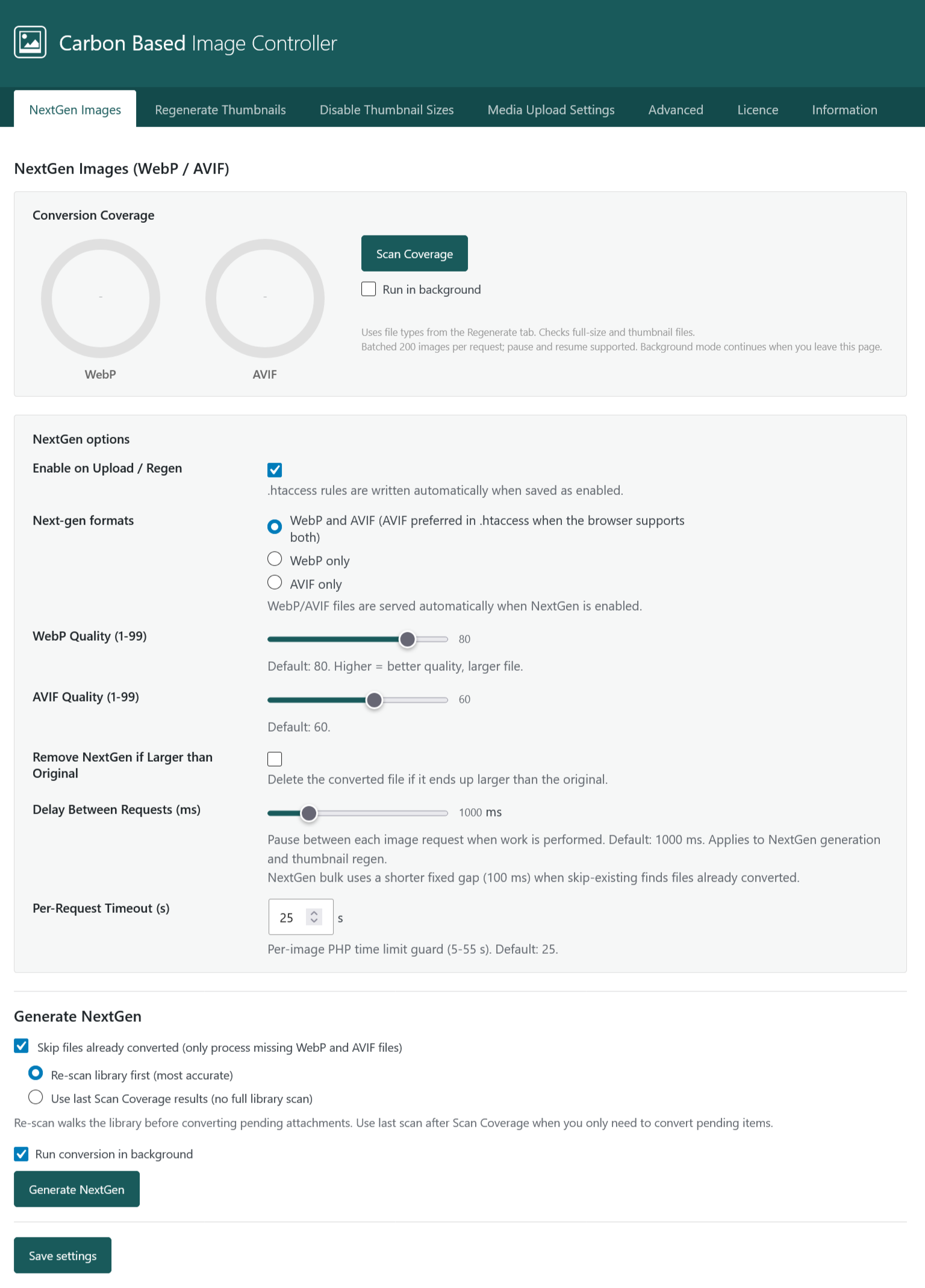
| NextGen Images | WebP/AVIF formats, quality, upload/regen hooks, Conversion Coverage scan, bulk Generate NextGen, optional background jobs. |
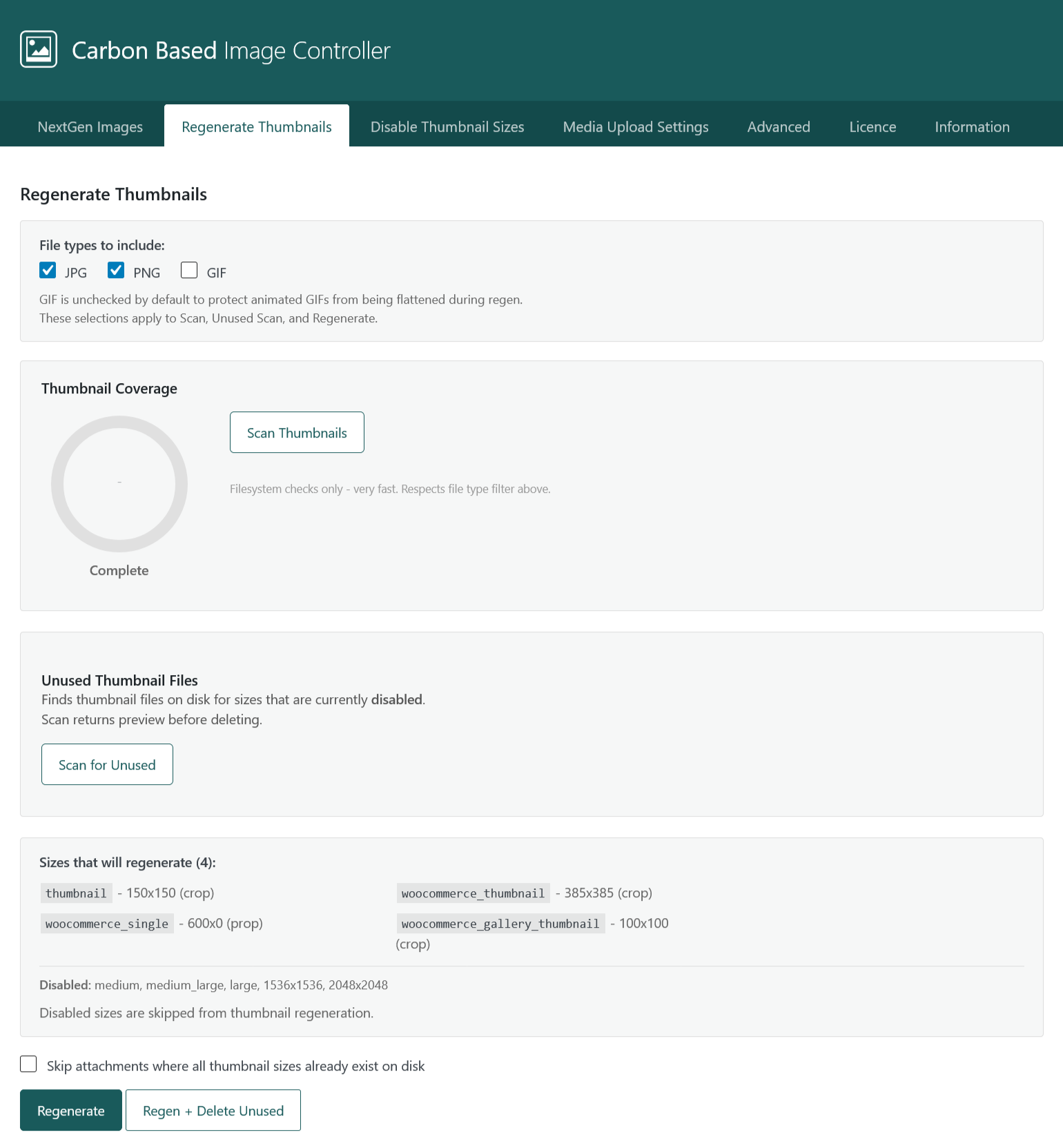
| Regenerate Thumbnails | File-type filters, Thumbnail Coverage scan, unused-thumbnail cleanup, bulk regen (and Regen + Delete Unused), Media Library bulk actions. |
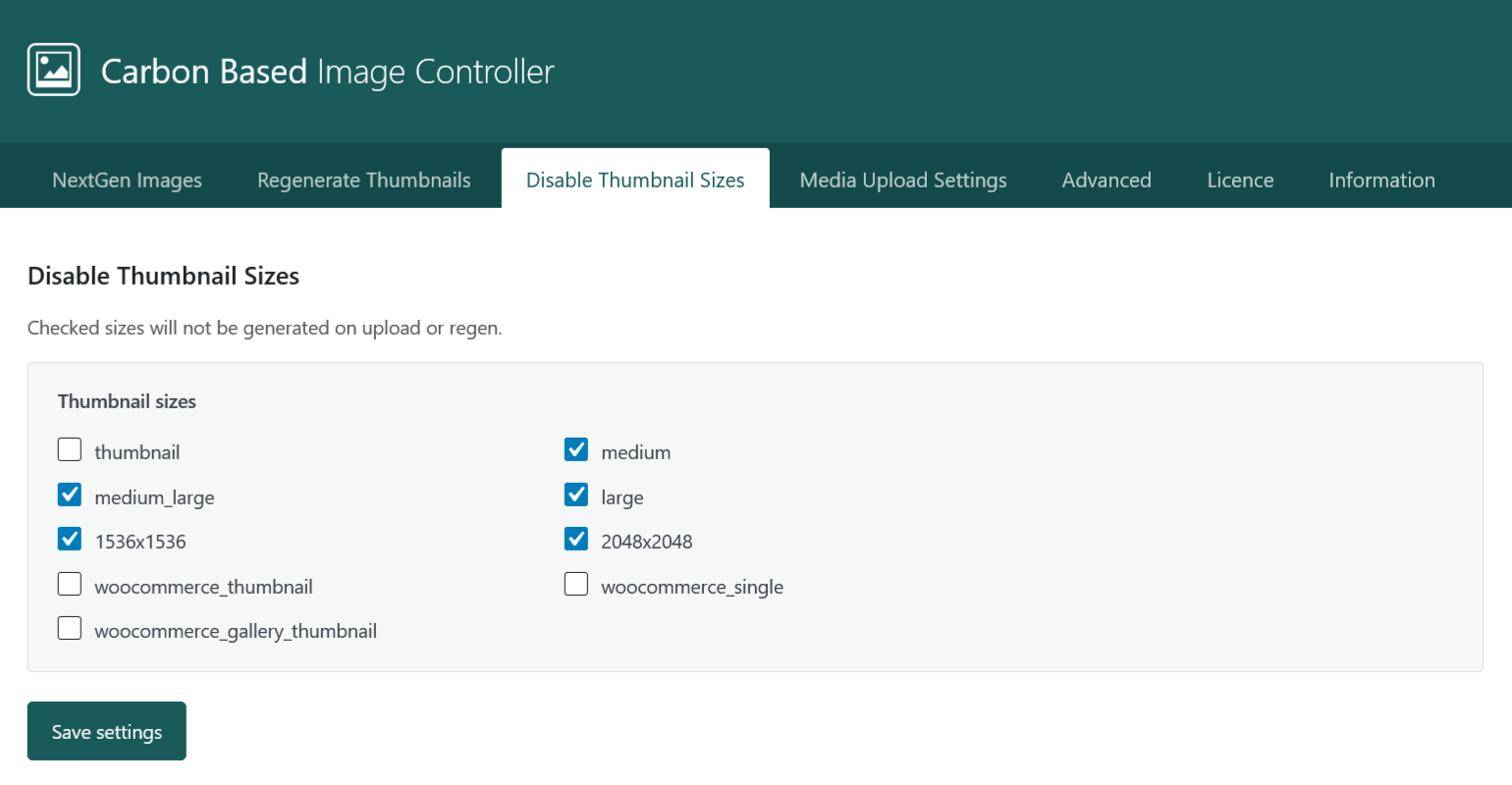
| Disable Thumbnail Sizes | Stop WordPress creating selected intermediate sizes on upload and regen. |
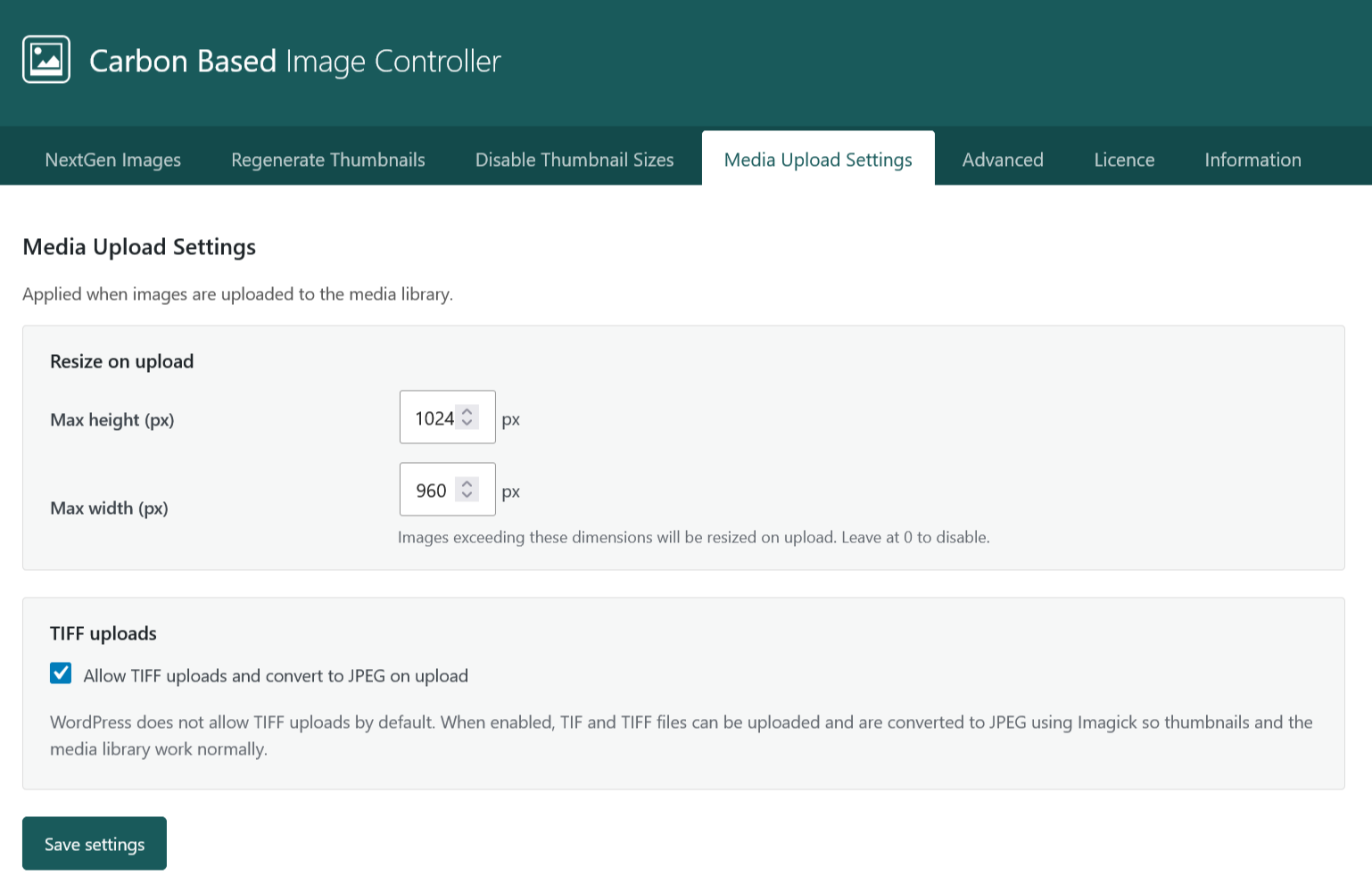
| Media Upload Settings | Max width/height on upload; optional TIFF allow + JPEG conversion (Imagick). |
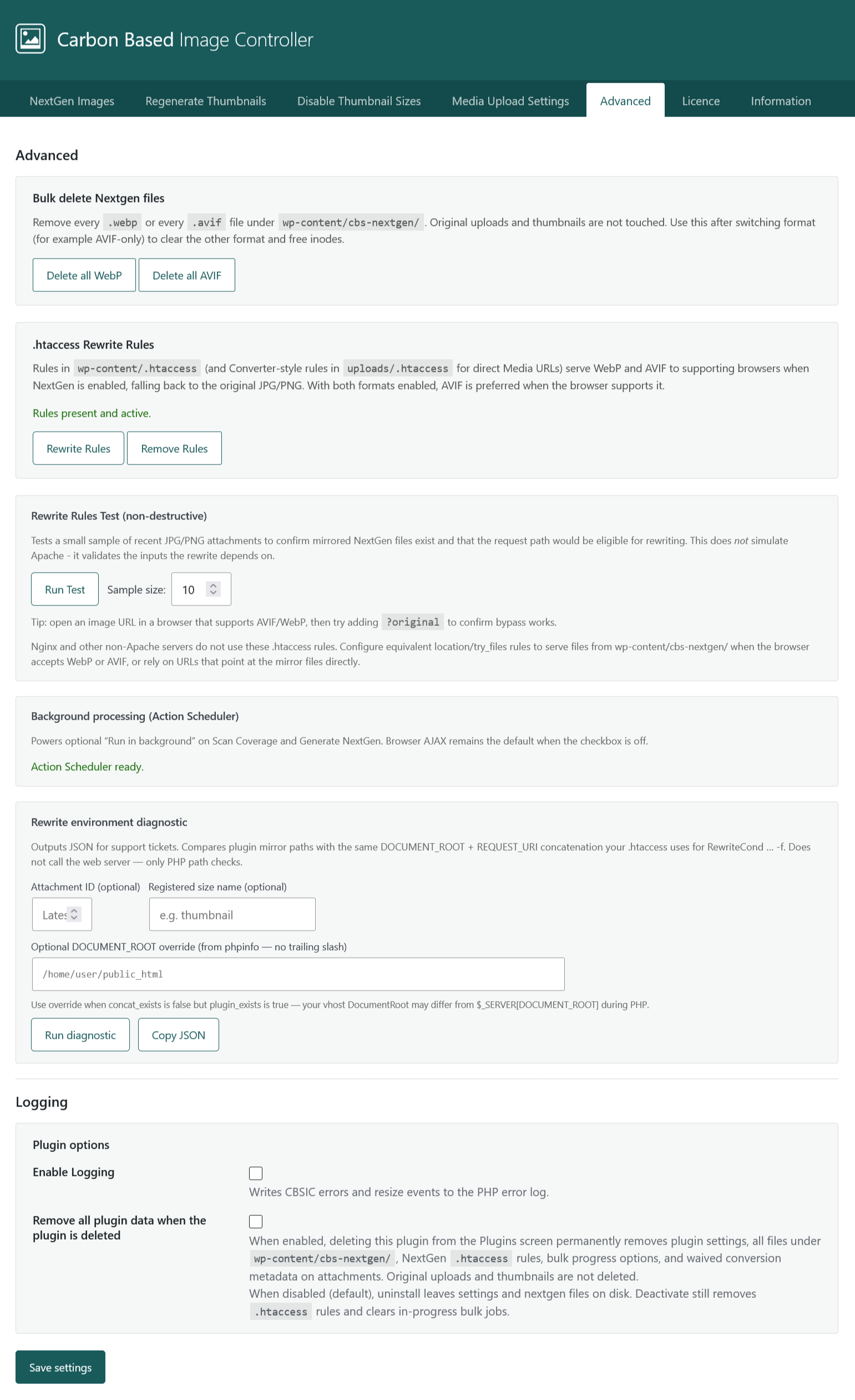
| Advanced | Bulk delete mirrored nextgen files, .htaccess rewrite rules (write/remove/test), Action Scheduler status, rewrite environment diagnostic, debug logging, uninstall data option. |
| License | Activate license key, check status (Active / Expired / Revoked), check for updates, in-place plugin update when entitled; renew link when expired. |
| Information | How coverage and storage lines work, nextgen paths and delivery, background jobs, Media Library actions, deactivate vs uninstall behaviour. |

NextGen workflow
- On NextGen Images, enable WebP and/or AVIF and set quality sliders. Save settings.
- Run Scan Coverage to see donut charts per format. After a completed scan, storage lines show on-disk mirrors, matched originals, and savings.
- Coverage uses file types selected on the Regenerate Thumbnails tab (JPG/PNG/GIF).
- Run Generate NextGen. With Skip files already converted, choose Re-scan library first (most accurate) or Use last Scan Coverage results (faster when coverage is current).
- On sites with Action Scheduler, enable Run in background or Run conversion in background so jobs continue when you leave the page. Checkbox states save with Save settings.
- On Advanced, confirm
.htaccessrewrite rules are present (or configure equivalent rules on Nginx). Use Rewrite Rules Test for a non-destructive sample check. - Verify delivery in a supporting browser; add
?originalto an image URL to compare against the original file.
Coverage states include pending (mirror missing), partial (main nextgen OK; some thumbnail sizes missing or skipped), and waived (nextgen creation skipped because the mirror would be larger than the original).
Thumbnails & disk usage
On Disable Thumbnail Sizes, check sizes you do not need. Checked sizes are not generated on upload or regen.
On Regenerate Thumbnails:
- Thumbnail Coverage - fast filesystem scan; run after changing disabled sizes.
- Unused Thumbnail Files - finds on-disk files for currently disabled sizes; preview before delete.
- Regenerate or Regen + Delete Unused - optional skip when all sizes already exist on disk.
- GIF is unchecked by default to protect animated GIFs from being flattened.
- Media Library - per-row Regenerate Thumbnails and bulk action; Delete NextGen removes both WebP and AVIF for that attachment.
Media upload & TIFF
On Media Upload Settings, set maximum width/height to resize large uploads automatically.
TIFF uploads are enabled by default. TIFF support requires the Imagick PHP extension; TIFF files convert to JPEG in the library when enabled.
License & updates
- Open Carbon Based > Image Controller > License.
- Paste your license key and click Activate license.
- Click Check for updates to refresh status and see whether a newer version is available.
- When entitled, click Update to version … for an in-place update (no redirect to the Plugins screen).
- Expired - use Renew license; updates are blocked until renewed.
- Revoked - contact support if you believe this is an error.
Troubleshooting
- Nextgen not serving (Apache) - confirm files exist under
wp-content/cbs-nextgen/, rewrite rules are present on Advanced, and page cache is cleared. - Nextgen not serving (Nginx) -
.htaccessrules do not apply; configure server rules to serve mirrors fromcbs-nextgen/or use the Rewrite environment diagnostic on Advanced for a JSON report. - Bulk job interrupted - resume from the banner or re-run the scan; for browser AJAX, check PHP
max_execution_timeon large libraries. Prefer background mode when Action Scheduler is ready. - Background job stalled - check Action Scheduler status on Advanced; ensure WP-Cron or server cron runs. From WP-CLI:
wp cbsic run-queue. - AVIF unavailable - requires PHP 8.1+ and
imageavif(); a warning appears on the NextGen tab when unsupported. - TIFF fails - verify Imagick is installed and enabled.
- Updates not offered - open License; activate the key, check status, and renew if expired.
- Need the original - add
?originalto the image URL.
Support
Include WordPress version, PHP version, plugin version (Information tab header), and license status when contacting support. For rewrite issues, attach JSON from Advanced > Rewrite environment diagnostic (optional DOCUMENT_ROOT override on Nginx).