

Overview
This guide covers installation, connection, listing workflows, sync, licensing, and troubleshooting for Carbon Based Studio Auction Manager - NZ. The plugin lives under Carbon Based > Auction Manager - NZ.
Supported: Trade Me Marketplace general-item listings (auction, Buy Now, multi-quantity) from WooCommerce.
Not supported: Trade Me Property, Motors (vehicles), Jobs, Services, or classified listing types.
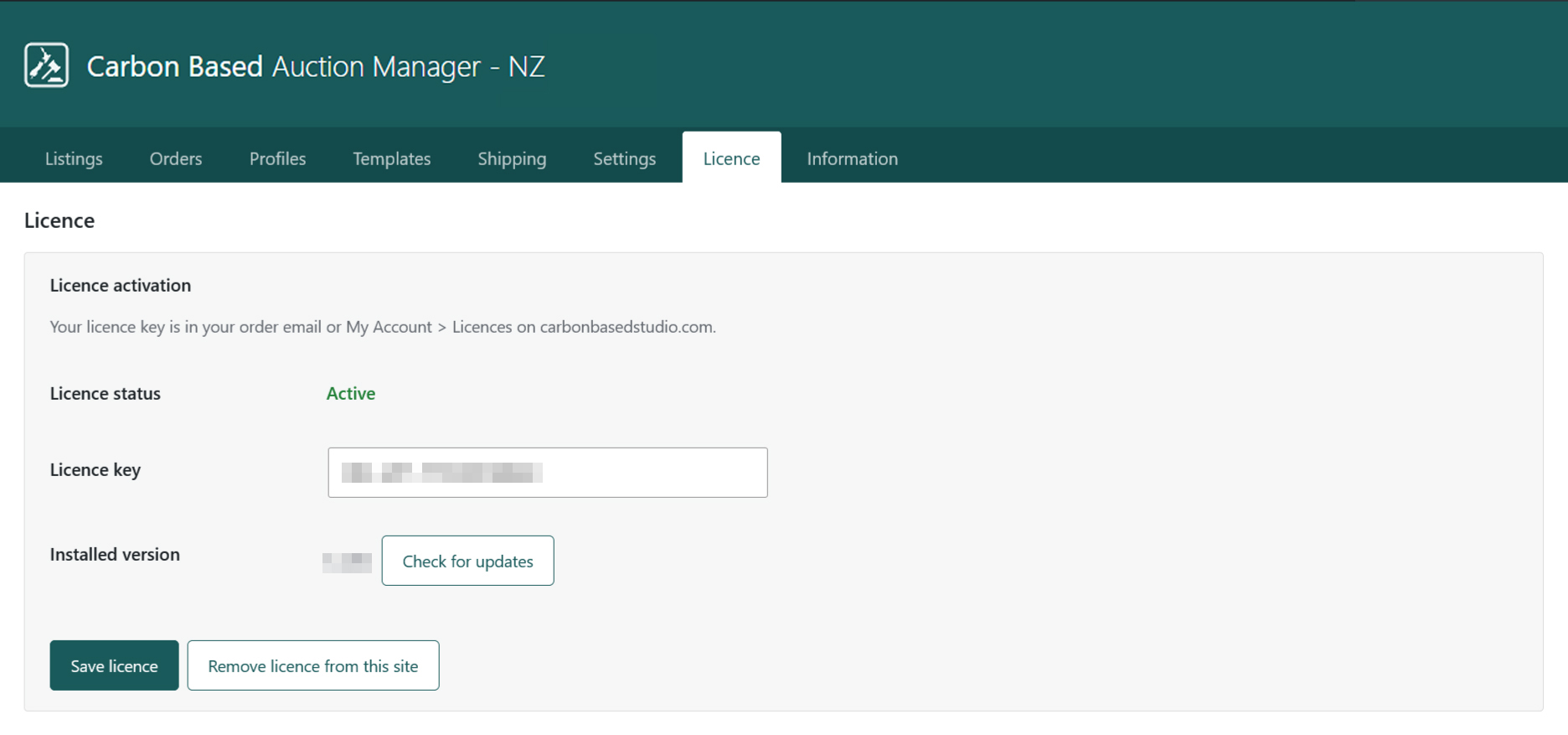
Auction Manager - NZ is a licenced product. After purchase, activate your licence key on the Licence screen to receive plugin updates. Your key is in your order email or My Account > Licences on carbonbasedstudio.com.
Installation
- Download the plugin zip from your order or My Account, then install via Plugins > Add New > Upload Plugin (or copy into
wp-content/plugins/). - Activate Carbon Based Studio Auction Manager - NZ (requires WooCommerce).
- Confirm Carbon Based appears in the admin menu with Auction Manager - NZ as a submenu.
- Open Licence and activate your licence key.
- Complete Settings > Connection (Trade Me API application + OAuth) before publishing listings.
Requirements: WordPress 6.5+, PHP 8.0+, and WooCommerce. You need a Trade Me seller account and a Trade Me API application authorised for this WordPress site (HTTPS).
Screens overview
| Screen | Purpose |
|---|---|
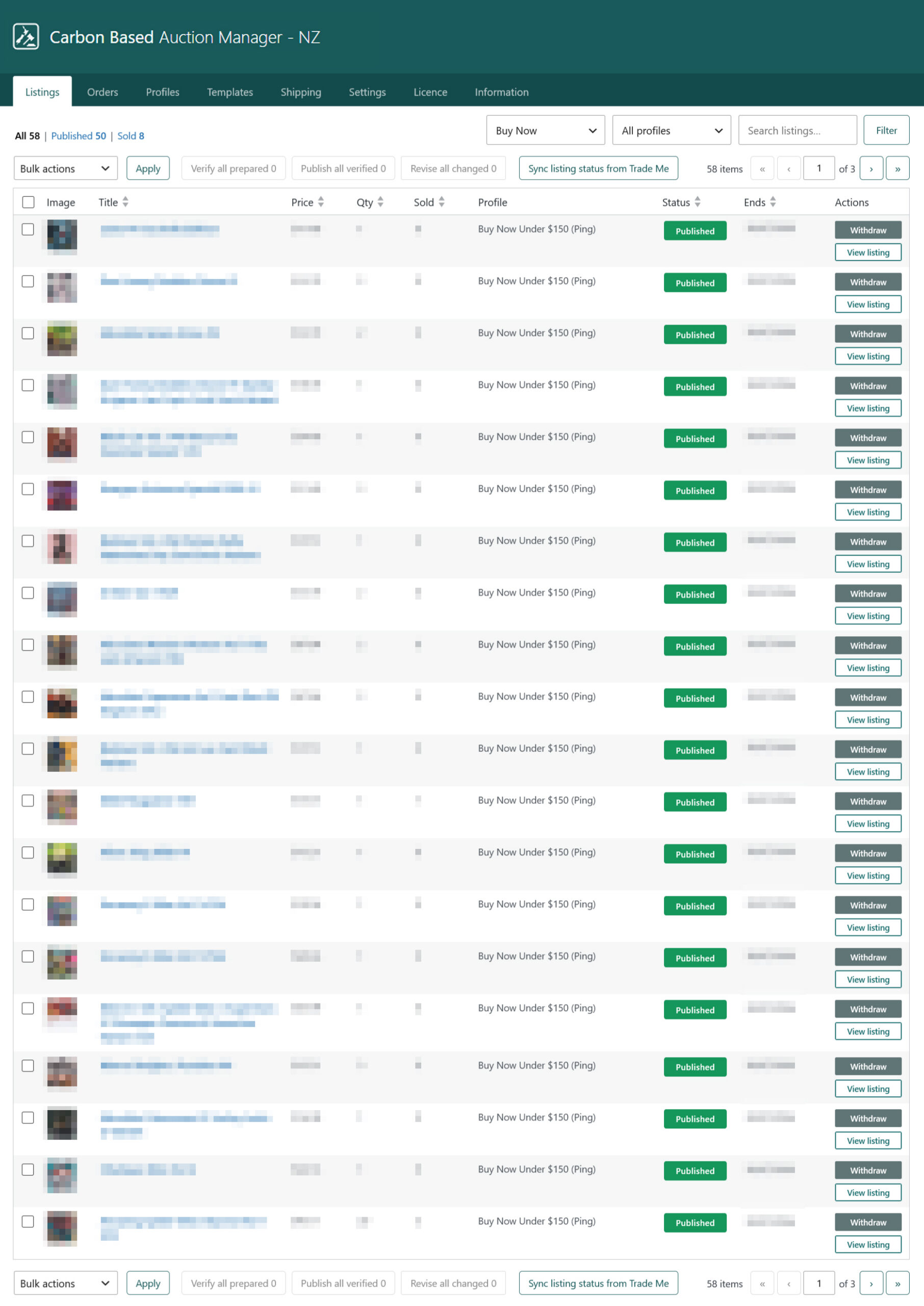
| Listings | Prepared and live marketplace rows; Prepare, Verify, Publish, Revise, Withdraw, Relist (row or bulk). |
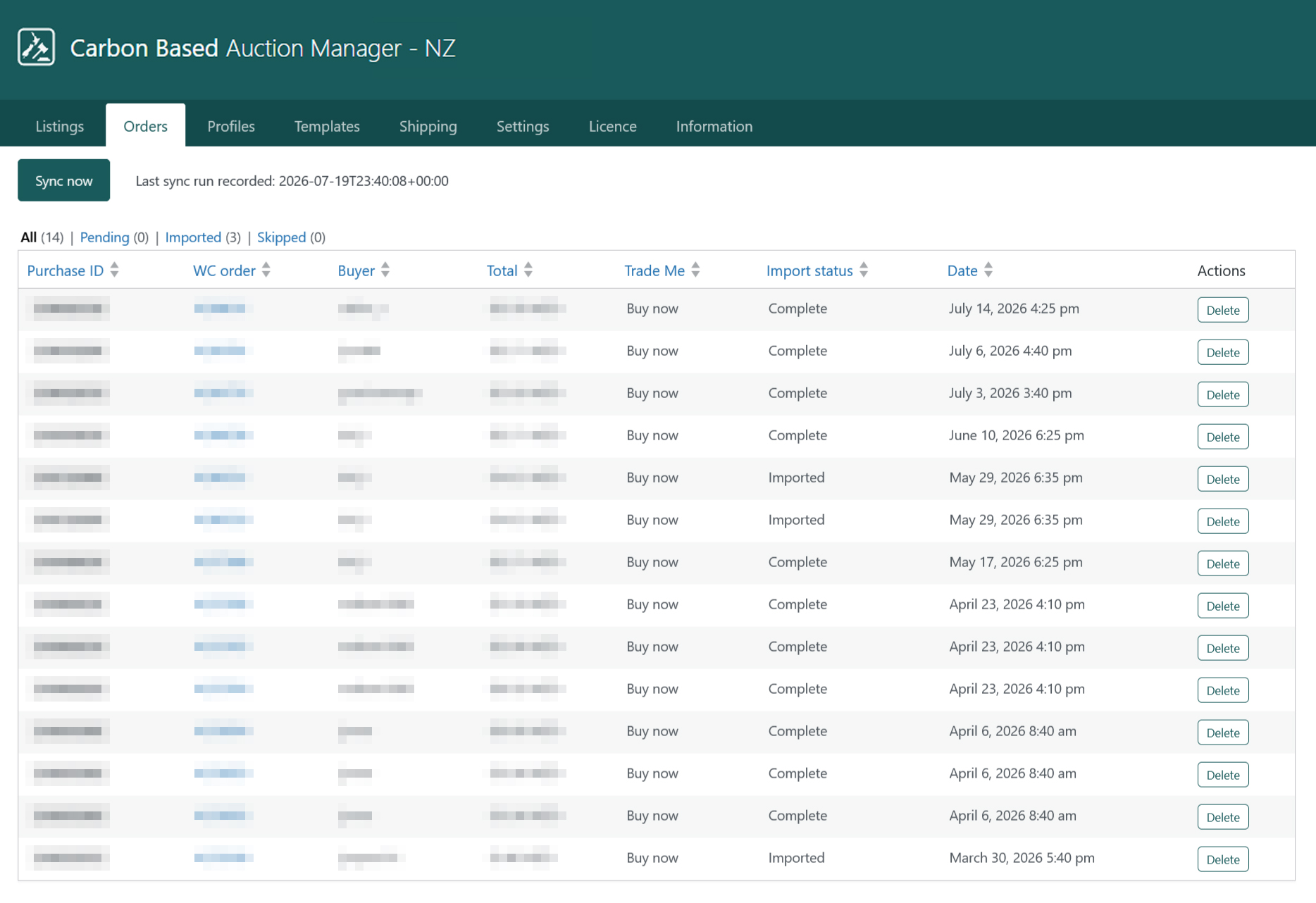
| Orders | Import Trade Me sold items into WooCommerce; Sync now and skip reasons. |
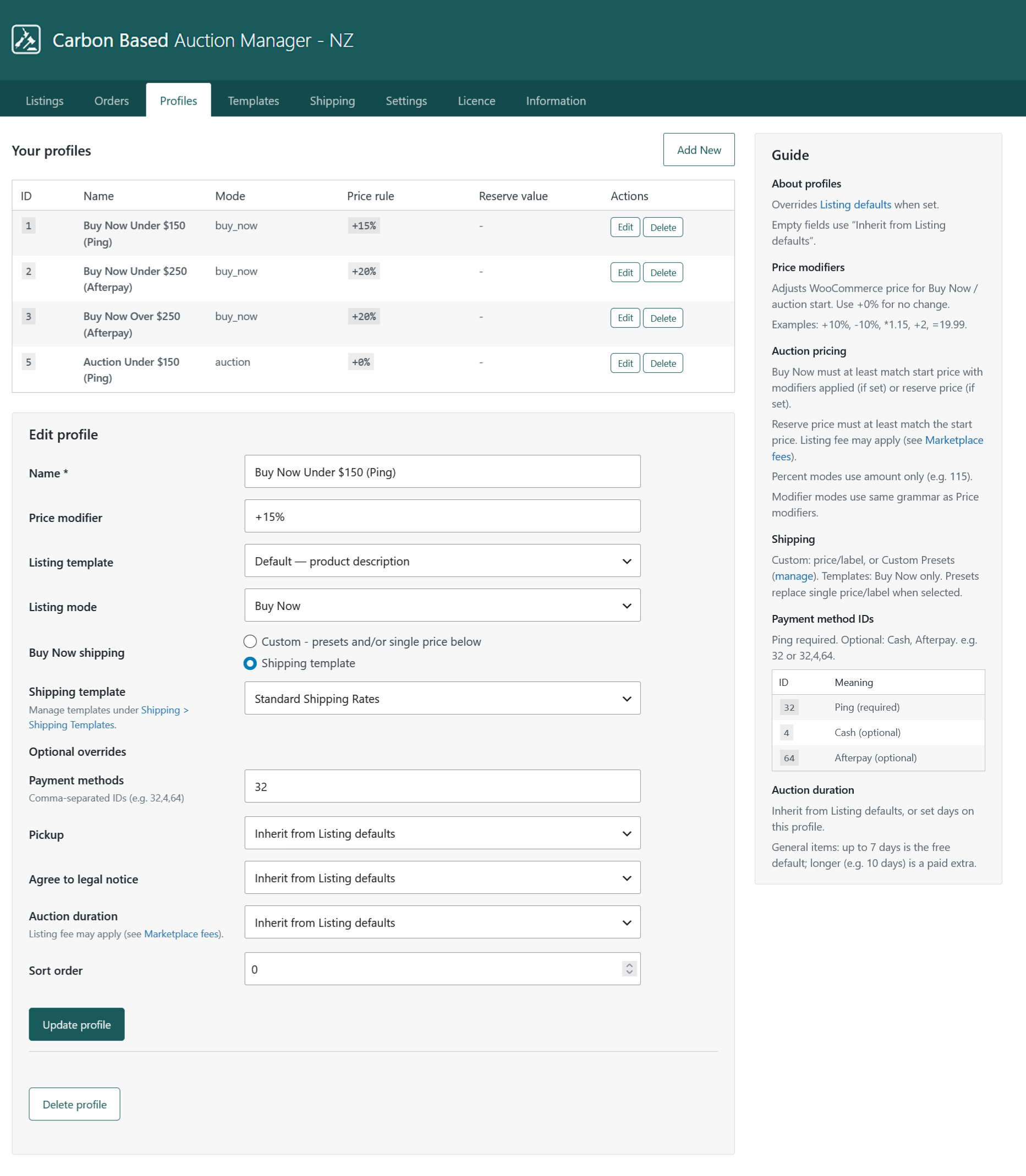
| Profiles | Reusable Buy Now / Auction listing settings; Guide tab for quick reference. |
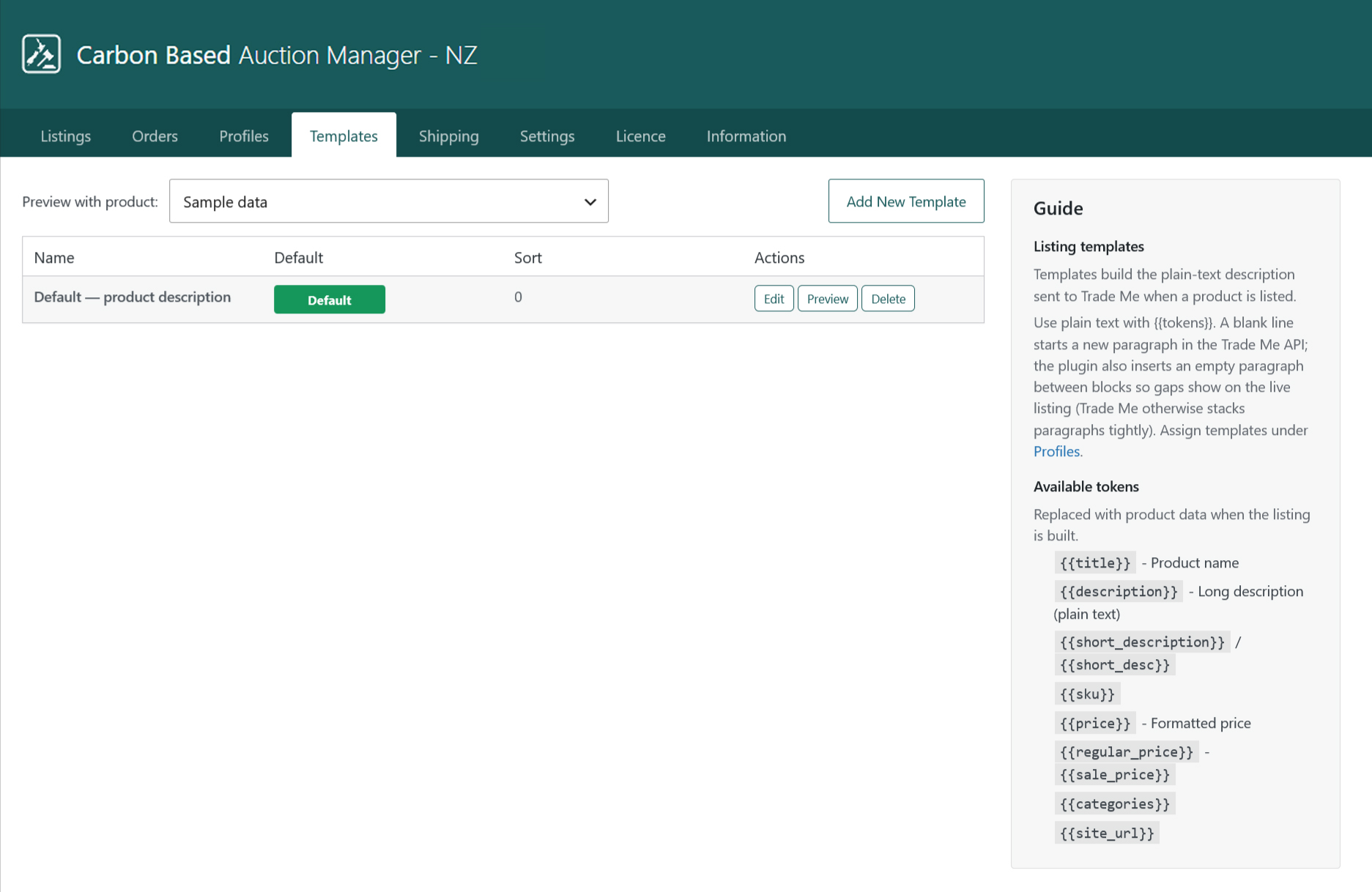
| Templates | Plain-text listing description templates with product tokens. |
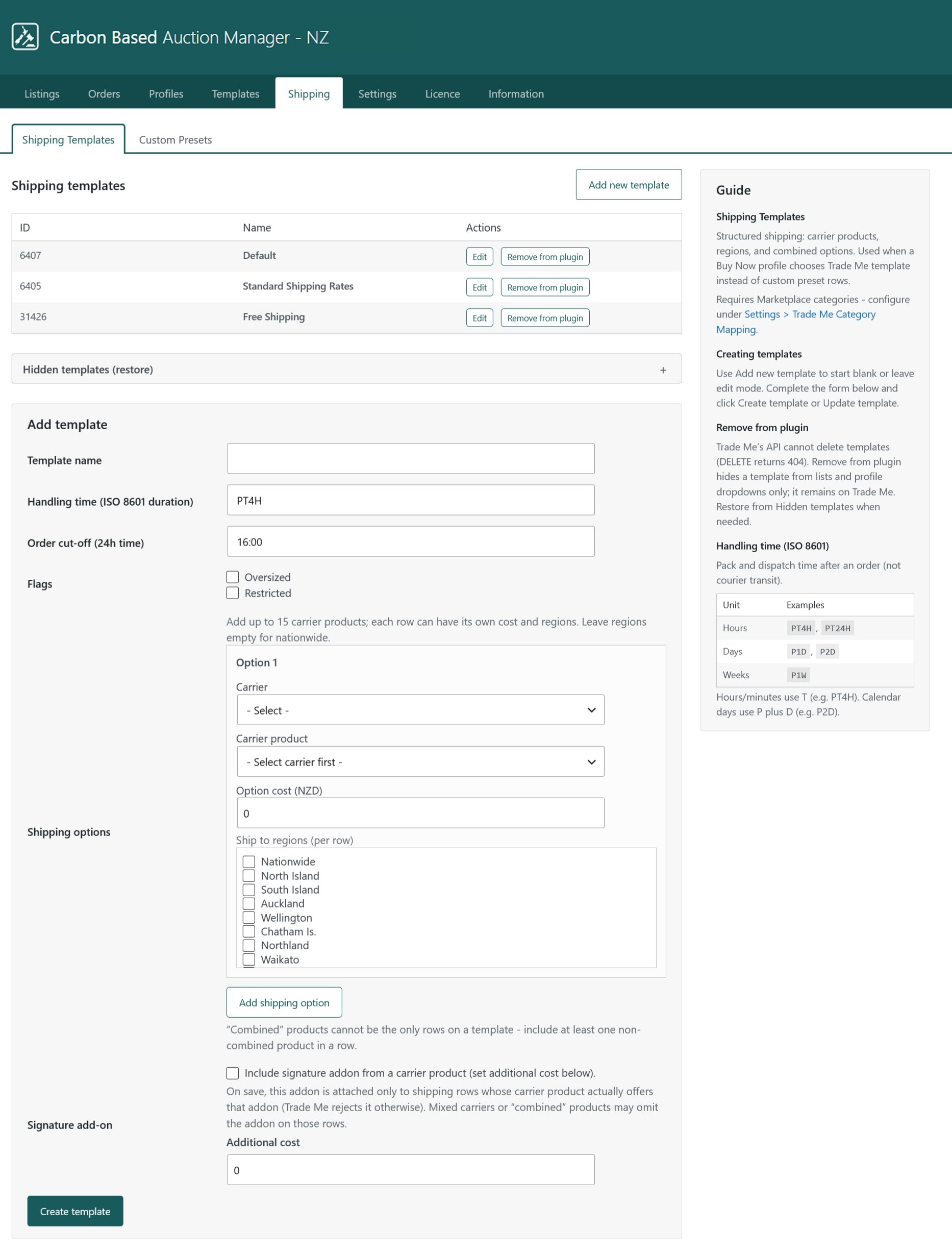
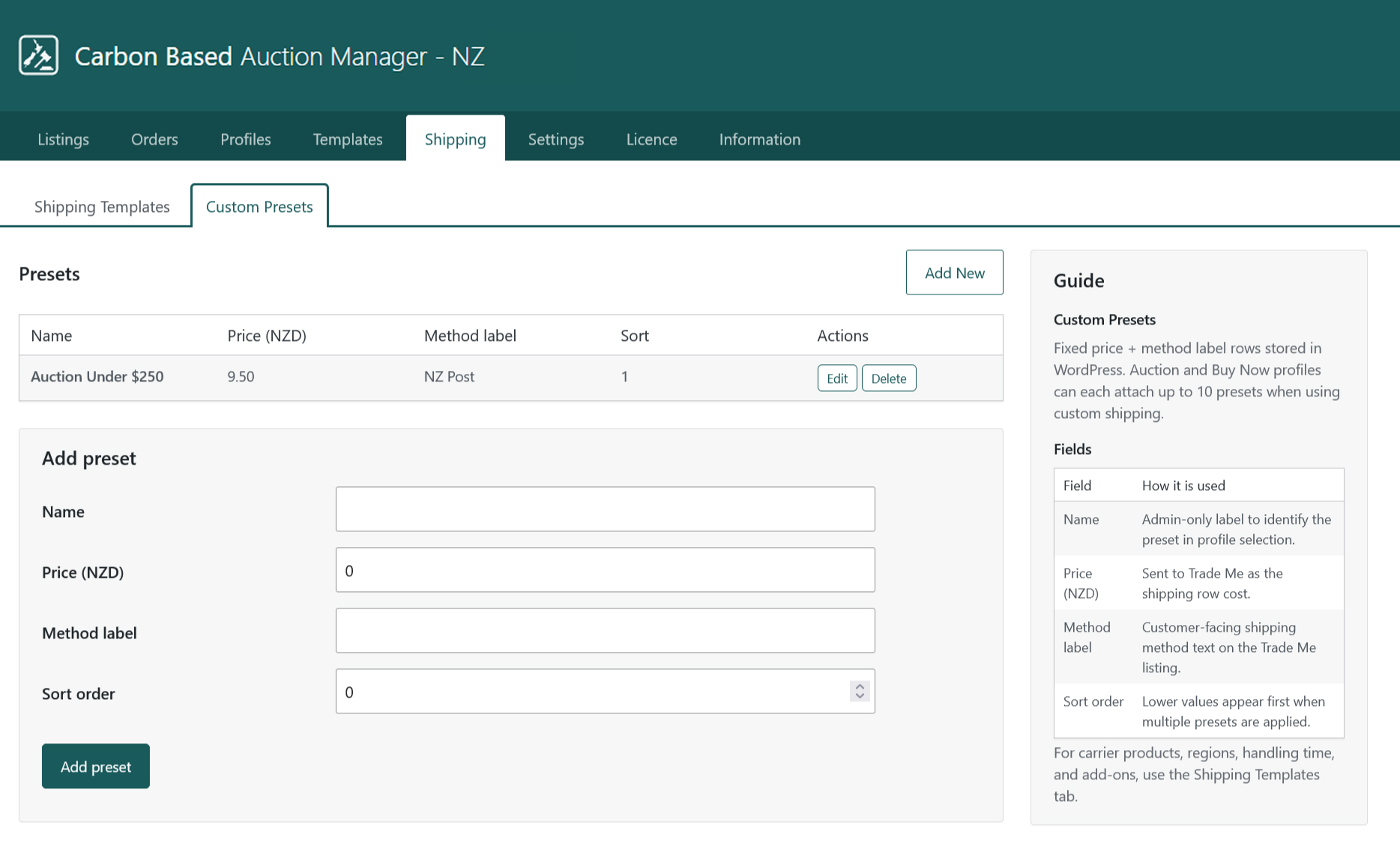
| Shipping | Shipping Templates (structured) and Custom Presets (price + method label). |
| Settings | Connection, Sync Settings, Branding, Listing defaults, Category Mapping, Advanced, Help. |
| Licence | Activate licence key, status, check for updates, in-place update when entitled. |
| Information | Supported listing types and in-plugin reference for Listings, Orders, Profiles, Templates, Shipping. |
Connect to Trade Me
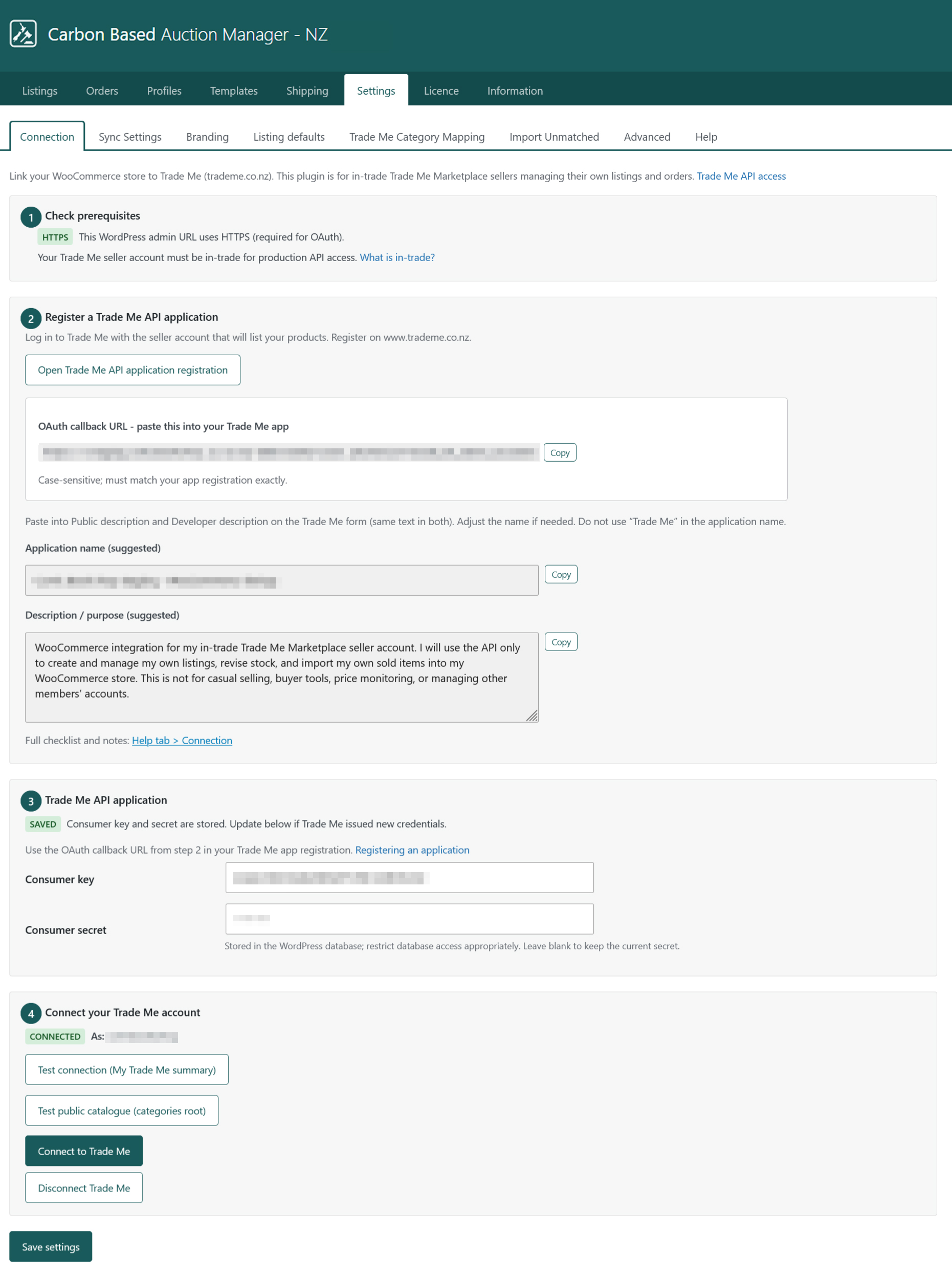
- Open Settings > Connection and confirm site HTTPS (and any readiness checks shown on that screen).
- Register a Trade Me API application using the OAuth callback URL and suggested application name from Connection / Help. Do not put the words “Trade Me” in the application name.
- Enter Consumer Key and Consumer Secret from Trade Me, save, then authorise OAuth for your seller member.
- Import Trade Me categories and map WooCommerce categories under Settings > Category Mapping. Mapped IDs must be leaf Marketplace categories.
- Set Listing defaults (shipping price, payment methods, withdrawal reason, fee overage behaviour) and optional Sync Settings.
Payment methods use Trade Me method IDs (comma-separated). Marketplace listings typically require Ping (32); Cash (4) and Afterpay (64) are optional. See Profiles > Guide.
Profiles, templates & shipping
Profiles hold reusable listing settings. Values on a profile override Listing defaults. Leave “Inherit from Listing defaults” (or blank shipping / payments) when you want the global defaults.
- Listing mode - Buy Now or Auction.
- Price modifiers - adjust the WooCommerce price (examples:
+10%,-10%,*1.15,+2,=19.99). Use+0%for no change. - Buy Now shipping - Custom (presets and/or a profile price) or a Shipping template from Shipping > Shipping Templates.
- Auction shipping - custom presets and/or a profile-specific shipping price and method label.
- Listing template - choose a description template, or product description only.
Templates build the plain-text description sent to Trade Me. Use {{tokens}} such as {{title}}, {{description}}, {{sku}}, {{price}}, {{categories}}, and {{site_url}}. A blank line starts a new paragraph. Assign templates under Profiles.
Custom Presets are fixed NZD price + method label rows (up to 10 per profile when using custom shipping). Shipping Templates are structured Trade Me shipping (carriers, regions, handling time) for Buy Now profiles that choose a template.
Listing workflow
- In WooCommerce > Products, select simple products, choose List on Trade Me, pick a listing profile, and Apply.
- Open Listings. Prepared rows appear there.
- Prepare builds the listing payload from the product and profile.
- Verify runs Trade Me Selling/Fees so you can see potential charges before publish.
- Publish creates the live Marketplace listing. Use Revise after product or profile changes; Withdraw for unsold listings (uses the withdrawal reason from Listing defaults).
- Optional: enable listing status sync and auto-relist under Settings > Sync Settings. Import existing live listings with Import Listings (under Settings) and link them to WooCommerce products.
Keep manual fee confirmation enabled unless you intentionally want unattended publishing (see Listing defaults → Listing fee overage and Help).
Orders & sync
Orders imports Trade Me sold items into WooCommerce. Each sale is keyed by Purchase Id so the same purchase is never imported twice.
- Use Sync now on Orders, or enable scheduled order sync under Settings > Sync Settings.
- Skipped sales and reasons appear on the Orders screen; detail is in WooCommerce > Status > Logs (source
cbsam-nz-order-sync). - Auto stock sync can revise Trade Me quantity when WooCommerce stock changes; fee confirmation may skip auto revise until you confirm or allow fee overage in Listing defaults.
Licence & updates
- Open Carbon Based > Auction Manager - NZ > Licence.
- Paste your licence key and click Activate licence.
- Click Check for updates to refresh status and see whether a newer version is available.
- When entitled, use the in-place update action for the new version (no redirect to the Plugins screen).
- Expired - use Renew licence; updates are blocked until renewed.
- Revoked - contact support if you believe this is an error.
Troubleshooting
- Cannot connect / OAuth fails - confirm the callback URL on Trade Me matches Connection exactly, Consumer Key/Secret are for that application, and the site is HTTPS.
- Publish fails - payment methods - set comma-separated method IDs under Listing defaults or on the listing profile (Ping is typically required for Marketplace).
- Publish fails - shipping - for custom shipping, set a profile shipping price, Custom Presets, or Listing defaults shipping price; Buy Now may use a Shipping template instead.
- Wrong Trade Me category - map leaf Marketplace categories; resolution walks from the product’s deepest WooCommerce category upward to the first mapped ancestor, then the default.
- Fee confirmation / auto sync skipped - Verify or revise manually on Listings, or review Listing fee overage under Listing defaults (use with care).
- Order not imported - check Orders skip reasons and
cbsam-tm-order-synclogs; the same Purchase Id is never imported twice. - Updates not offered - open Licence; activate the key, check status, and renew if expired.
- Unsupported listing type - this plugin only supports Marketplace general items, not Property, Motors, Jobs, Services, or classifieds.
Support
Include WordPress version, PHP version, WooCommerce version, plugin version (header v…), licence status, and whether the issue is Connection, Listings, or Orders when contacting support. Attach relevant lines from WooCommerce > Status > Logs (cbsam-nz / cbsam-nz-order-sync) when useful.