

Overview
This guide covers installation, settings tabs, classic menu injection, shortcode and block placement, and troubleshooting for Carbon Based Studio Menu Search (version 1.1.x). Settings are at Carbon Based > Menu Search.
Menu Search adds a toggle search icon to classic WordPress menus you choose, with a full-width dropdown panel. Block themes that cannot inject into the Navigation block can use the Menu Search Toggle block or the [cbsms_search_toggle] shortcode-including a full-width bar under the site header.
Menu Search is a free plugin on WordPress.org. No licence key is required.
Installation
- Install from Plugins > Add New on WordPress.org or upload to
wp-content/plugins/. - Activate Carbon Based Studio Menu Search.
- Confirm Carbon Based appears in the admin menu with Menu Search as a submenu.
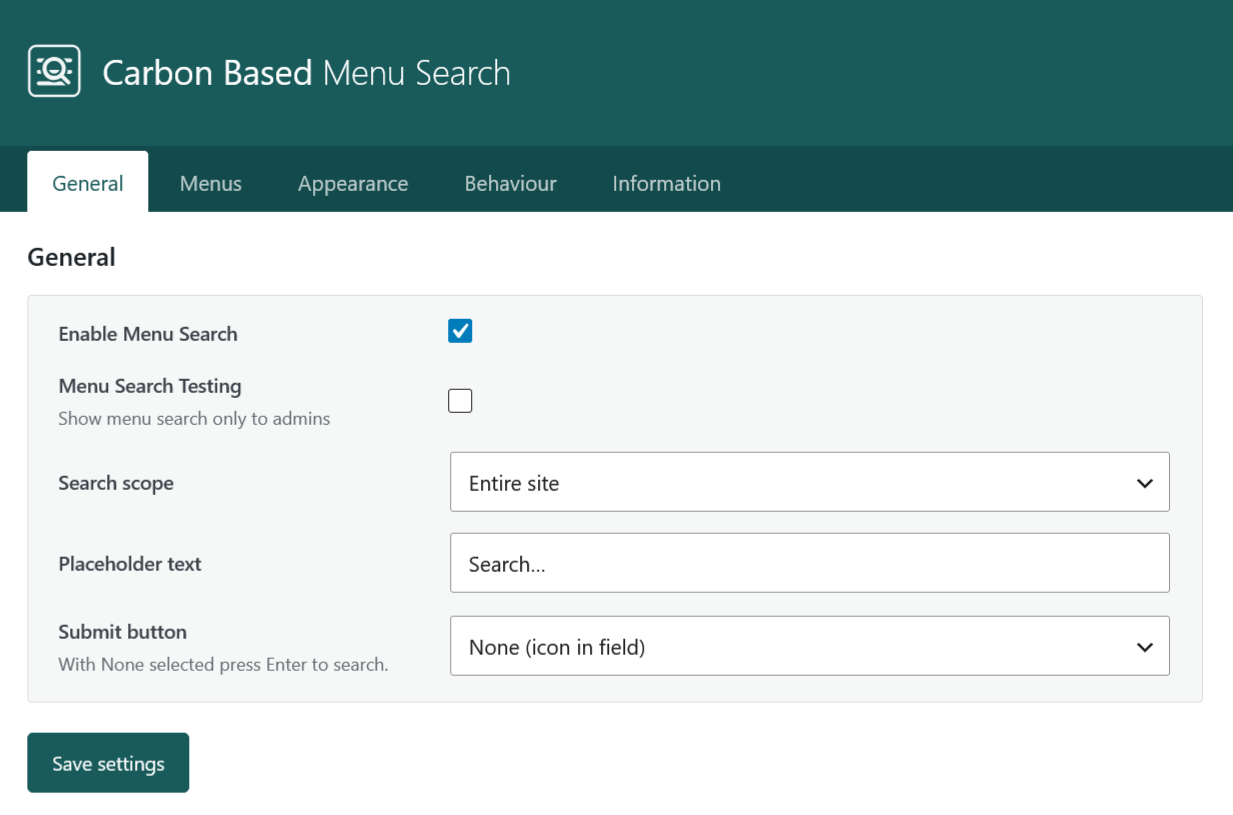
- Open General, leave Enable Menu Search on, and click Save settings.
Requirements: WordPress 6.0+, PHP 7.4+. WooCommerce is optional (product search scope and shop visibility rules). Font Awesome is optional and only needed if you choose that icon type.
Settings overview
| Tab | Purpose |
|---|---|
| General | Enable plugin, admin-only testing, search scope (and post types), placeholder text, submit button mode and label. |
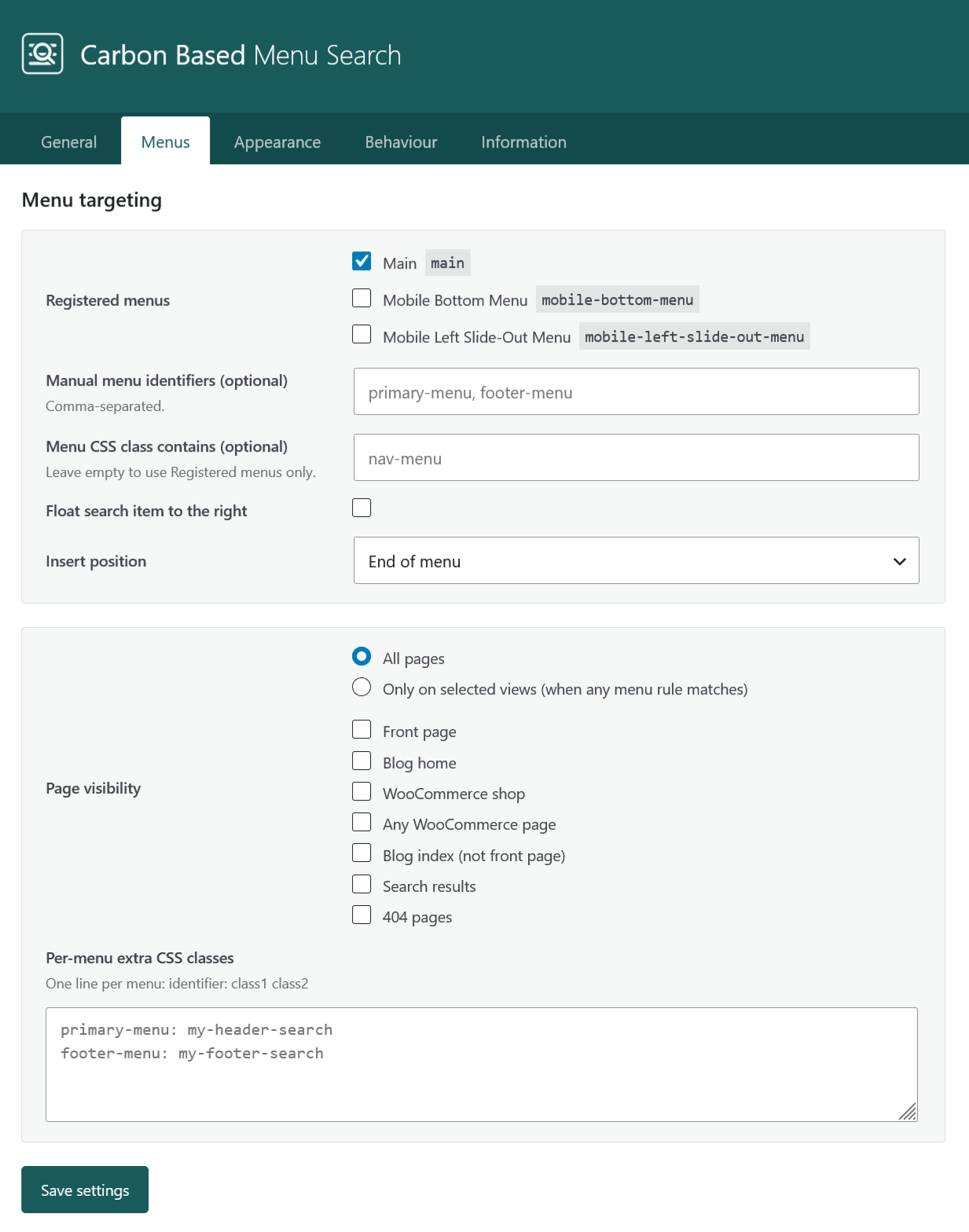
| Menus | Registered menus, manual identifiers, CSS class filter, insert position, float right, page visibility, per-menu CSS classes. |
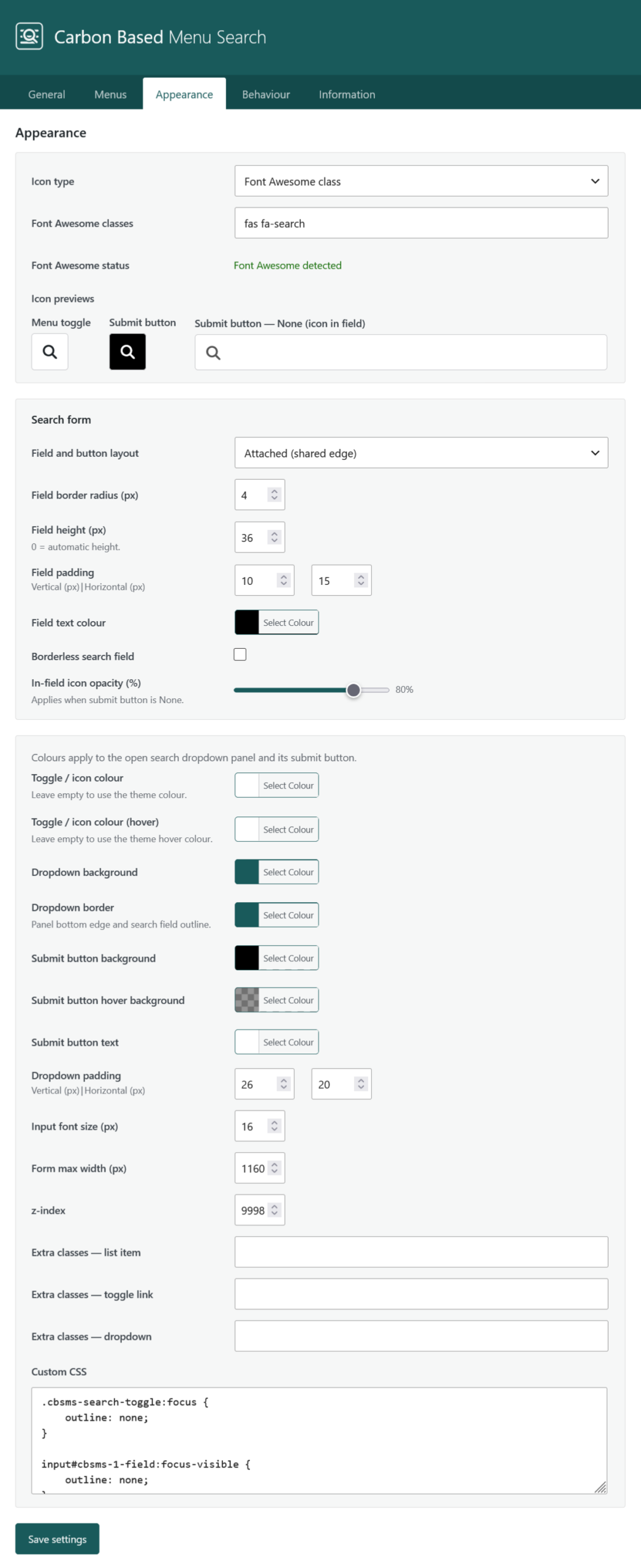
| Appearance | Icon type (SVG / Dashicons / Font Awesome / custom HTML), search form layout and colours, toggle icon colours, z-index, extra classes, Custom CSS. |
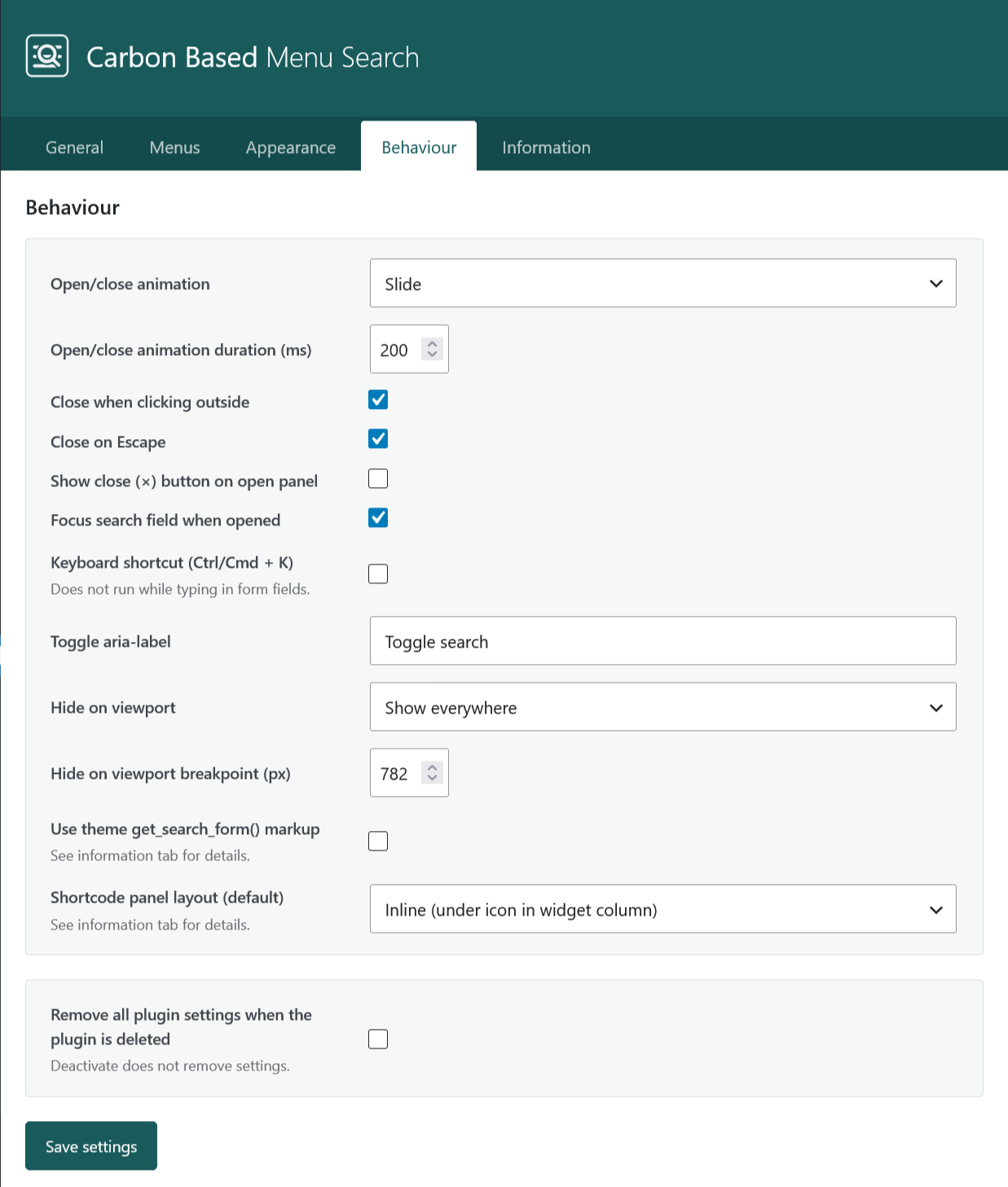
| Behaviour | Animation, close outside / Escape / close (×), focus on open, Ctrl/Cmd+K shortcut, aria-label, viewport hide, theme search form, shortcode panel layout, uninstall data option. |
| Information | In-plugin reference for menus, shortcode, behaviour, appearance, filters, and troubleshooting. |
Classic menus
Search is injected via wp_nav_menu_items. You must tick at least one Registered menu - that is the only gate for whether the search item appears in a classic menu.
- Open Menus and tick one or more Registered menus.
- Set Insert position (end, start, or after the Nth top-level item). Use After item number when After Nth item is selected.
- Optionally enable Float search item to the right on flex navbars.
- If the live
<ul>id differs from the menu slug, add that id under Manual menu identifiers (comma-separated, no#). This helps click binding and layout CSS; it does not inject search by itself. - Advanced mapping uses the same Manual field with lines such as
main-menu: primary-menu(menu-key: container-id). - Save settings and hard-refresh the storefront.
The dropdown spans the full width of the menu list (positioned under the search icon). Layout CSS uses safe roots such as #menu-{slug} and your manual ids - not bare page landmarks like #main.
Shortcode and block
[cbsms_search_toggle] and the Menu Search Toggle block output the same toggle UI outside wp_nav_menu. They can run alongside menu injection on the same site.
- Shortcode panel layout (Behaviour) - default for shortcode and block. Inline places the dropdown under the icon; Full-width below header opens a bar under the site header.
- Override per shortcode with
panel="inline"orpanel="header-bar"(example:[cbsms_search_toggle panel="header-bar"]). The block sidebar can override the same setting. - Header anchor selectors - comma-separated CSS selectors used only in header-bar mode; the bar top is the lowest bottom edge among matches (e.g.
#masthead, .site-header). - Optional
menu_idattribute maps per-menu CSS classes from the Menus tab.
Block themes: the core Navigation block does not use wp_nav_menu_items. Use the block, the shortcode, a classic menu in a child theme, or a hybrid header.
Search scope
General > Search scope controls the search results URL and which content types WordPress queries.
- Entire site - omits
post_type(WordPress default searchable types). - Posts and pages only - uses
post_type[]=postandpost_type[]=page. - WooCommerce products only - uses
post_type=product(requires WooCommerce). - Selected post types - choose one or more public post types on the Post types row (e.g. pages and products together).
Appearance and icons
- Inline SVG (default) - no theme dependency.
- Dashicons - when selected, the plugin enqueues Dashicons on the storefront.
- Font Awesome - not bundled. Your theme or another plugin must load Font Awesome. Appearance shows a live glyph preview when a stylesheet is detected, or a warning if it is not.
- Custom HTML - paste your own icon markup (sanitised on save).
- Toggle / icon colour and hover - also colour the panel close (×). Leave empty to use the theme colour.
- Field and button layout - Attached or Separated; submit styles hide when Submit button is None (icon in field).
- Custom CSS is global for all outputs unless your rules target a specific wrapper class.
Behaviour
- Open/close animation - Slide, Fade, or None, with optional duration (ms).
- Close when clicking outside, Close on Escape, and Focus search field when opened apply to every panel type.
- Show close (×) button - on by default; colour matches Toggle / icon colour.
- Keyboard shortcut (Ctrl/Cmd + K) - optional; off by default. Does not run while typing in form fields.
- Hide on viewport - optionally hide the search UI on mobile or desktop using the breakpoint (px).
- Use theme get_search_form() markup - off by default. When enabled, theme search form HTML is rewritten to Menu Search field IDs so theme search CSS does not shrink the dropdown.
- Remove all plugin settings when the plugin is deleted - off by default. Deactivate alone does not remove settings.
Troubleshooting
- No search in the menu - confirm Enable Menu Search is on, at least one Registered menu is ticked, and settings are saved.
- Only admins see search - turn off Menu Search Testing on the General tab.
- Icon missing or wrong list - in DevTools, inspect the nav
ulid. If it differs from the menu slug, add that id under Manual menu identifiers. - Panel narrow or does not open - hard-refresh / clear cache; confirm panel position is absolute under the menu and manual ids match the live
ulid. In the console, checkwindow.cbsmsData.buildandmenuSelectors. - Block theme / Navigation block - use the Menu Search Toggle block or
[cbsms_search_toggle]; classic menu injection will not attach to the core Navigation block. - Font Awesome icons blank - load Font Awesome from your theme or another plugin, or switch icon type to Inline SVG.
- Header-bar position wrong - update Header anchor selectors so they match your theme header wrappers.
- Developers - see filters on the Information tab (
cbsms_inject_search_menu_items,cbsms_search_menu_item_html,cbsms_menu_selectors, and related).
Support
Include WordPress version, PHP version, plugin version (settings header), theme name, and whether you use classic menus, the shortcode, or the block when contacting support. For injection issues, note the live menu ul id and whether Manual menu identifiers are set.